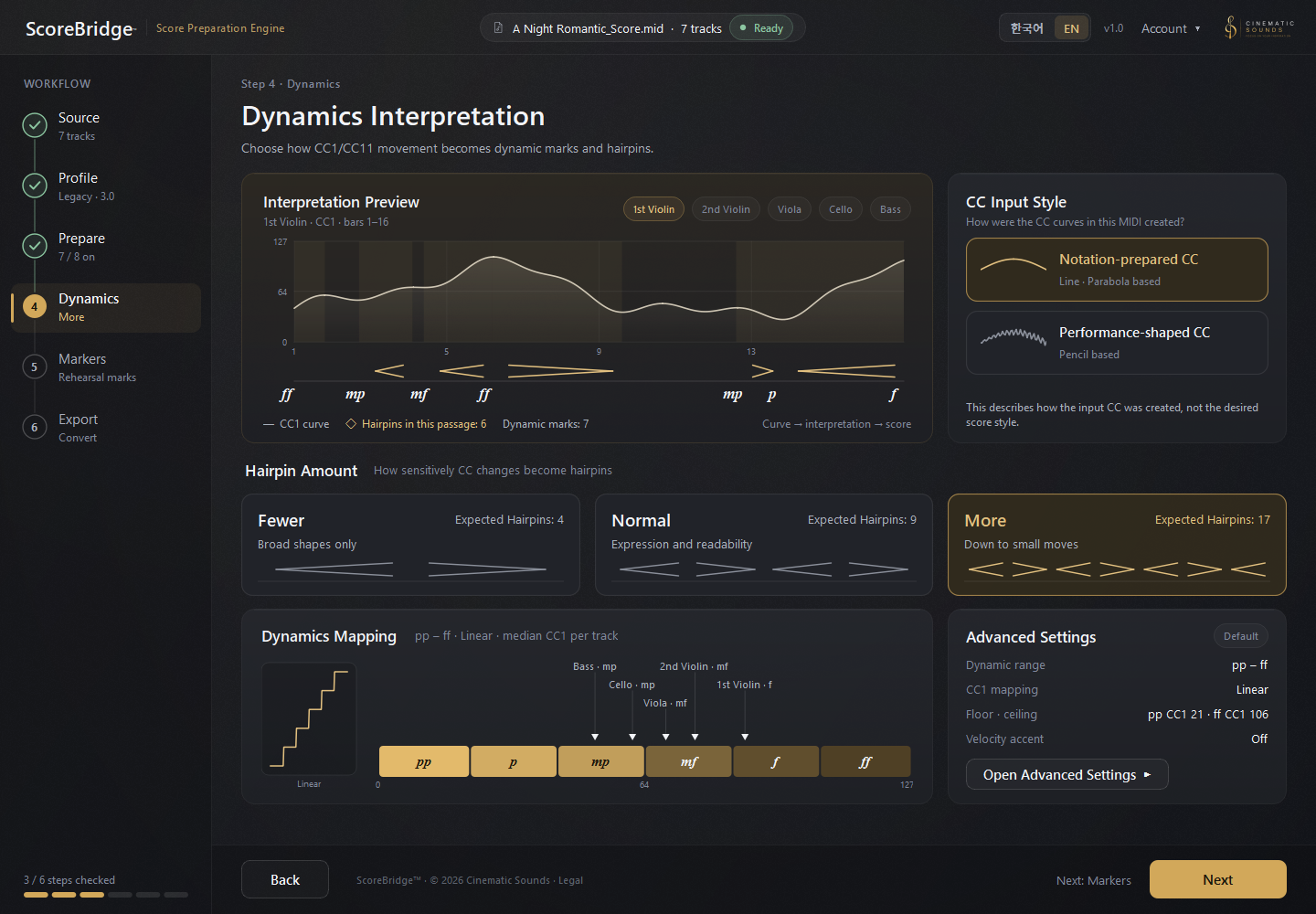
Phrase-oriented CC
- Data · Long, broad curves with fewer direction changes
- Interpretation · Prioritize the larger phrase movement
- Score · Principal dynamics and longer hairpins

ScoreBridge Workflow Guide
Quantize what the score needs, and keep your CC1 / CC11 data intact
Both are valid workflows
Quick Check
Timing & Note Length
In your DAW, you must quantize the note positions and note lengths you want the score to show.
Quantize each note to the beat and subdivision intended for the score.
Quantize the intended note value and remove unnecessary overlaps.
ScoreBridge is a score-preparation tool for moving a DAW-created MIDI mockup efficiently into notation—not a transcription tool for reproducing every detail of a free MIDI performance.
Playing Techniques
When one virtual-instrument track uses several playing techniques, separate the notes by technique before export so you can identify and place them accurately after conversion.
ScoreBridge does not currently interpret library-specific keyswitches, Expression Maps, Sound Variations, or articulation changes made with separate patches. MIDI pitch and length alone may not reveal whether a note was played pizzicato, sul ponticello, sul tasto, or with another technique.
Separate playing techniques that ScoreBridge cannot identify from MIDI notes alone into dedicated tracks.
Include both the instrument and playing technique in the track name.
Violin 1 LongViolin 1 PizzicatoViolin 1 TremoloViolin 1 Sul PonticelloCubase is used here as a practical example. The same preparation principle can be used in other DAWs without changing ScoreBridge’s current supported product scope.
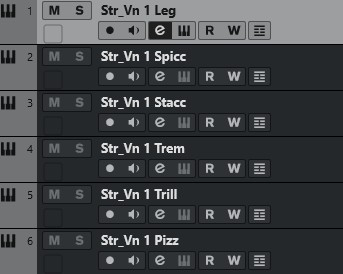
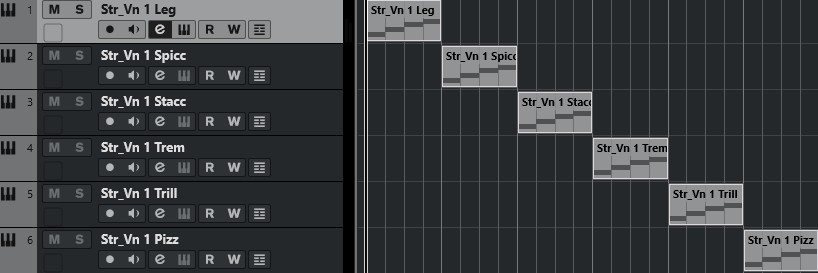
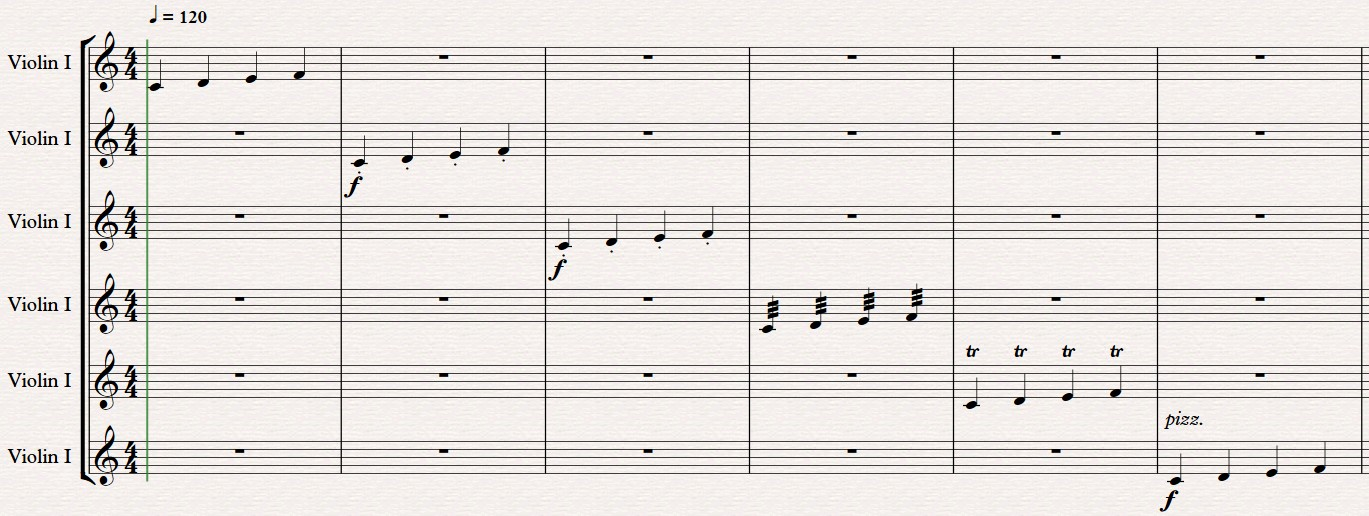
ScoreBridge recognizes supported technique labels in track names, such as stacc., spicc., pizz., trem., trill, con sord., sul pont., and sul tasto. It does not infer techniques from note lengths or read key switches or expression maps. Slurs are not generated; add them in Sibelius where needed.
rit. / accel. — Sibelius preserves these as System Tempo Text in the full score and parts. If the starting metronome mark appears alongside one, delete only the duplicate metronome mark after import.
CC1 / CC11
Redrawing or smoothing CC1/CC11 specifically for notation is not a standard preparation step. Broad phrase curves and detailed performance movements are both valid professional workflows.
Choose the CC input style that matches how the MIDI was written.
Dynamics Interpretation
In the Dynamics step, choose Notation-prepared CC or Performance-shaped CC. Under Hairpin Amount, choose Fewer, Normal (the default), or More. If CC1 is missing or flat, ScoreBridge can use CC11 instead.
Review the result after choosing the closer method. Use Dynamics Off only when you do not want dynamics conversion itself—not as a substitute for redrawing CC data.
ScoreBridge Scope
ScoreBridge does not translate every CC1 / CC11 movement into a notation marking on a one-to-one basis.
Across different MIDI expression styles, it identifies the dynamic structure the score needs to reduce repetitive cleanup.
See how ScoreBridge fits into the complete MIDI-to-Sibelius workflow.
Back to the ScoreBridge product page